
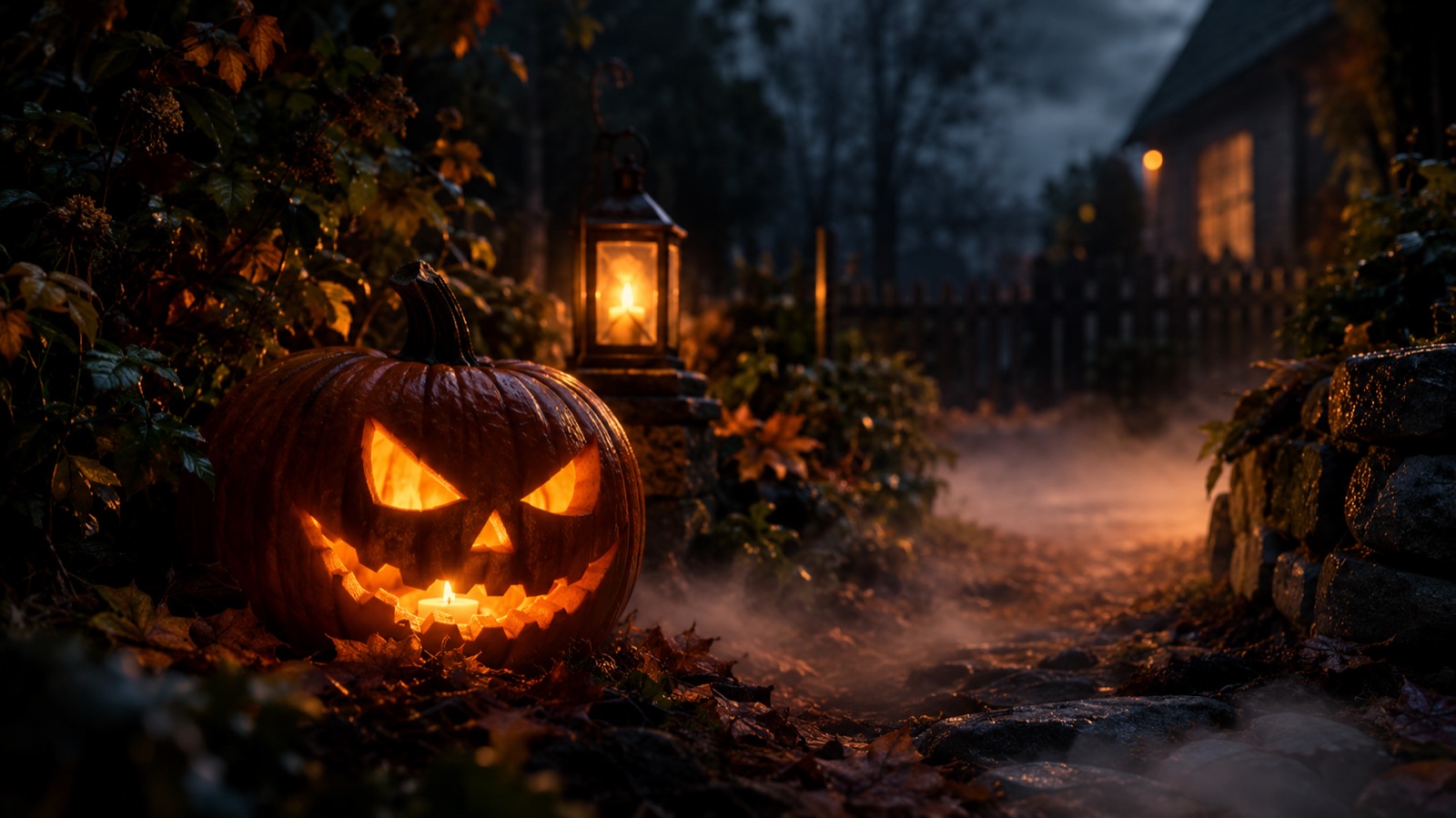
Not every Halloween photo needs a costume. Sometimes the outfit is right and the photo is flat: a kitchen wall behind you, a phone flash on your face, and no hint of the season. A photo editor fixes the scene instead of the person.
The presets below are background-and-light edits. They keep the subject, the clothing, and the pose, and replace the environment with something that reads as Halloween. The workspace lets you edit any prompt before generating, so you can keep the fog and drop the pumpkins if that is not your taste.
What a Halloween photo editor should change — and what it should not
The useful edit is narrow. Change the background, the light, and the color grade. Keep the face, the body, the clothing, and the pose. That is enough to make a plain photo feel seasonal, and it avoids the uncanny result you get when a model redraws a person from scratch.
A costume generator is a different tool. Use it when you want a new outfit. Use this page when the outfit is already on your body and you only need a better scene. Mixing the two instructions in one prompt usually produces a plastic mask and a background that ignores the subject.
Four editing moves that look good in a Halloween photo
These are the moves the presets are built from. You can combine them, but change one at a time so you can tell which instruction caused the problem.
- 1
Replace the background, not the person
Name the background in concrete terms: weathered stone, bare trees, a dark party wall. Add "preserve the subject clothing and pose exactly" before the background sentence.
- 2
Add one practical light source
A pumpkin, a bonfire, a neon sign, or a window. One source is believable; five sources turn the face into a light show. State the direction so the shadow on the nose matches the scene.
- 3
Use fog as a depth layer
Fog should sit behind the subject and fade toward the camera. If you ask for fog everywhere, the model may wash out the face. Ask for low drifting fog and a clear foreground.
- 4
Grade the color last
Warm amber, cool moonlight, or a green vintage cast. A grade is safer than a new scene because it keeps the original composition and only changes the mood.
The six presets at a glance
Each preset is an editable starting point. The tag tells you how much of the photo it changes, so you can pick the least invasive edit that solves your problem.
| Preset | What it changes | Best for |
|---|---|---|
| Haunted Mansion | Background only | Indoor photos with a plain wall |
| Pumpkin Glow | Foreground prop and warm light | Portraits that feel too dark |
| Fog & Moonlight | Atmosphere and cool light | Outdoor photos that look flat |
| Vintage Horror | Color grade and grain | Photos you do not want to recompose |
| Candy Neon | Party background and rim light | Group or nightlife photos |
| Autumn Bonfire | Outdoor scene and firelight | Full-body or waist-up shots |
How to replace a background without changing the person
The order of the prompt is the trick. Put identity first, clothing second, pose third, and the background last. If the background comes first, the model tends to rebuild the person to fit the scene. If identity comes first, the person stays put and the scene adapts.
Hair is the hardest edge. Curly hair, flyaways, and a dark background behind dark hair will show halos. Ask for realistic edge detail around hair and shoulders, and avoid a source photo where the hair blends into a black wall. A slightly lighter source background gives the model more to work with.
- Say "preserve the subject face, expression, body proportions, clothing, and pose".
- Name the new background in two or three concrete nouns, not a mood board.
- Match the light direction: "warm rim light from the left" beats "cinematic lighting".
- Add "do not add people, text, or watermarks" at the end.
- Check hands and hair before you check the background.
Output format, resolution, and credits
The workspace lets you choose a resolution and an output format. JPG is smaller and fine for social sharing; PNG is better if you plan to edit the result again. Start at 1K while you test the prompt, then rerun the winning version at a higher resolution.
Every generation uses credits. The cost depends on the model and resolution, and the workspace shows it before you submit. There is no free unlimited tier. If a task fails, the status panel tells you what happened before you spend credits on a retry.
Where this editor stops
This is not a retouching tool for removing a person from a group photo, and it is not a face swap. It will not reliably fix a closed eye, a motion-blurred hand, or a photo where the face is turned away. Those are source-photo problems, and a new background will not solve them.
It also will not make a fake photo look like evidence. Do not use generated edits to misrepresent a real event, a real person, or a product. If you share a Halloween edit, say that it is an edit. That is both more honest and less likely to get the post reported.
Frequently asked questions
Can I edit a Halloween photo without changing my face?
Yes. Use an image-to-image edit that explicitly preserves the face, clothing, and pose, and change only the background or the color grade. Identity preservation is not guaranteed, so compare the result with the source before you share it.
Does the Halloween photo editor work on phone photos?
It works on JPEG, PNG, and WEBP images within the upload limit shown in the workspace. A sharp, evenly lit phone photo usually works better than a dark or heavily filtered one.
Can I add fog or a pumpkin to a photo I already took?
Yes. The Pumpkin Glow and Fog & Moonlight presets add those elements while asking the model to keep the subject unchanged. You can edit the prompt to remove the prop or change the light direction.
Is this a free Halloween photo editor?
Browsing and copying prompts is free. Generating an edited image uses credits from your omogle account. The workspace shows the cost before you run a task, and the pricing page lists the current packs.
Can I use the edited photo commercially?
Check the terms that apply to your account and to the image provider, and make sure you have the rights to the source photo. Do not use an edit to imply that a real person endorsed a product or attended an event they did not attend.