
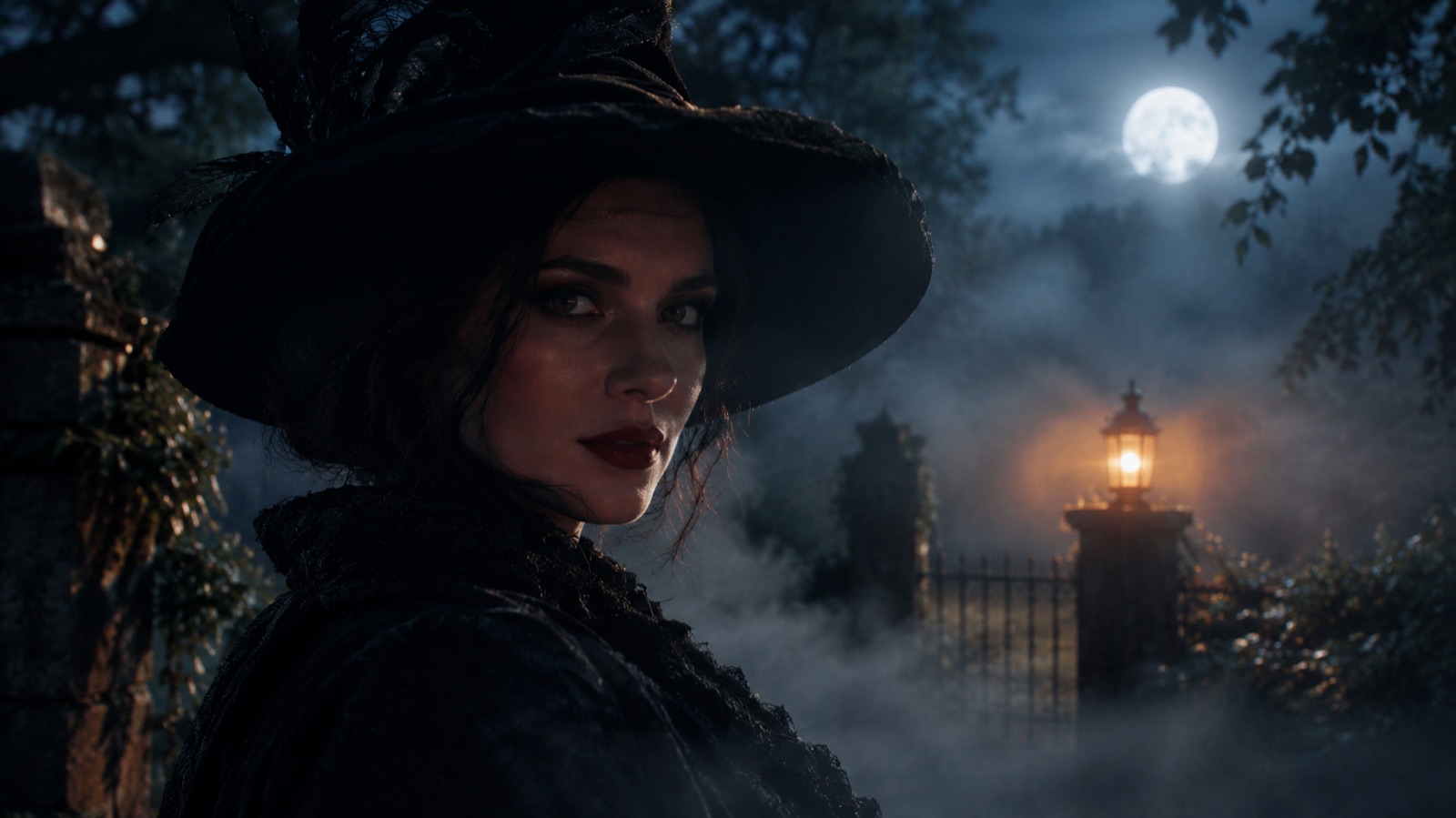
The best Halloween videos are not complicated. A portrait turns its head, the fog moves, a candle flickers, and the camera pushes in slowly. Four small motions are enough to make a still image feel alive.
This page uses an image-to-video workflow. You bring the frame — a generated costume portrait or a photo you already edited — and the prompt describes only the motion. That is deliberately different from text-to-video, where the model invents the person, the costume, and the scene at the same time.
What image-to-video does differently
Text-to-video invents the frame. Image-to-video protects it. When you provide a first frame, the model has a reference for the face, the costume, the background, and the light. Your prompt can focus on motion instead of re-describing everything.
That is why this page pairs with the costume generator and the photo editor. Make a portrait you like first, then animate it. If you start from text, you are asking the model to solve identity, costume, scene, and motion at the same time, and the result is much less predictable.
How to animate a Halloween portrait in four steps
The video workspace below accepts a first-frame image. The process is deliberately short: choose the motion, upload the frame, set duration and resolution, then generate.
- 1
Prepare a clean first frame
Use a finished portrait with the costume and background already decided. A square or portrait crop works better than a wide group shot. Keep the face sharp and in the upper half of the frame.
- 2
Choose one motion recipe
Pick a single behavior: head turn, fog, flame, camera move, hair, or light reveal. Combining three motions in one prompt usually produces warping around the face.
- 3
Set the shortest useful duration
Five seconds is enough for a social clip and cheaper than a long take. Increase duration only when the motion needs time to complete, such as a slow push-in.
- 4
Check the first two seconds
Most failures show up immediately: the face slides, the eyes change, or the costume morphs. If the first two seconds are stable, the rest usually holds.
Six motion recipes and when to use them
Each recipe is written to be small. Small motion is easier to control and looks more like a real camera than a dramatic transformation.
| Recipe | Motion | Best frame |
|---|---|---|
| Slow Head Turn | Head and a few hair strands | Front-facing portrait |
| Fog Drift | Background only | Any portrait with visible background |
| Candle Flicker | Flame and warm light shift | Frame with a candle or lantern |
| Camera Push-In | Slow forward move | Centered portrait with depth |
| Hair Breeze | Hair and one blink | Close-up with visible hair |
| Lantern Glow | Light reveal | Dark frame with a light source |
What makes AI motion look real
Real motion has a cause. Hair moves because air moves it. Light changes because a flame flickers. A camera pushes in because someone is holding it. If you describe the cause, the model has a physical rule to follow instead of a random direction.
Keep the face stable. Most viewers will forgive a soft background before they forgive a face that changes shape. Use phrases like "keep the subject face and body proportions consistent" and "do not morph facial features". If the model still drifts, reduce the duration or reduce the amount of motion.
- One motion per clip; add a second only after the first is stable.
- Describe the camera separately from the subject.
- Use "slow" and "subtle" instead of "dramatic" unless you want a warp.
- Avoid cuts, costume changes, and new characters in a five-second clip.
- Keep the first frame sharp; motion blur in the source becomes worse in the video.
Duration, resolution, and credits
Video costs more than a still image because the provider processes many frames. The workspace shows the available durations, resolutions, and credit cost before you submit. Start with the shortest duration at the lower resolution, then rerun the winning motion at a higher setting.
Video tasks are asynchronous. You can leave the page and come back; the task panel restores the active job in the same browser. If you enable completion email, the notification includes a link back to the task.
When not to use a video generator
Do not use a generated clip as evidence that a real person attended an event, wore a costume, or said something. Do not animate a photo of someone who has not agreed to it. And do not expect the model to preserve tiny details such as jewelry engraving or a specific fabric pattern across motion.
If your goal is a still image for a card or a profile photo, stop at the image step. Video adds cost and failure modes without improving a static use case.
Frequently asked questions
Do I need to generate an image first?
For the best result, yes. Image-to-video uses your portrait as the first frame, so the costume and background are already decided. You can also upload a photo you edited elsewhere.
How long can the Halloween video be?
The workspace shows the durations available for the selected model. Short clips of about five seconds are the safest starting point for a portrait, and longer durations cost more credits.
Why does the face change during the video?
Large motion, long durations, and prompts that ask for a new costume or scene give the model more room to drift. Use one small motion, keep the duration short, and explicitly ask to preserve the face and body proportions.
Can I add audio to the video?
Audio support depends on the selected model and is shown in the workspace controls. If the option is not available for your model, generate the clip silently and add sound in a separate editor.
Is the video generator free?
No. Video generation uses credits from your omogle account, and the cost is shown before you submit. Browsing the recipes and copying prompts is free.